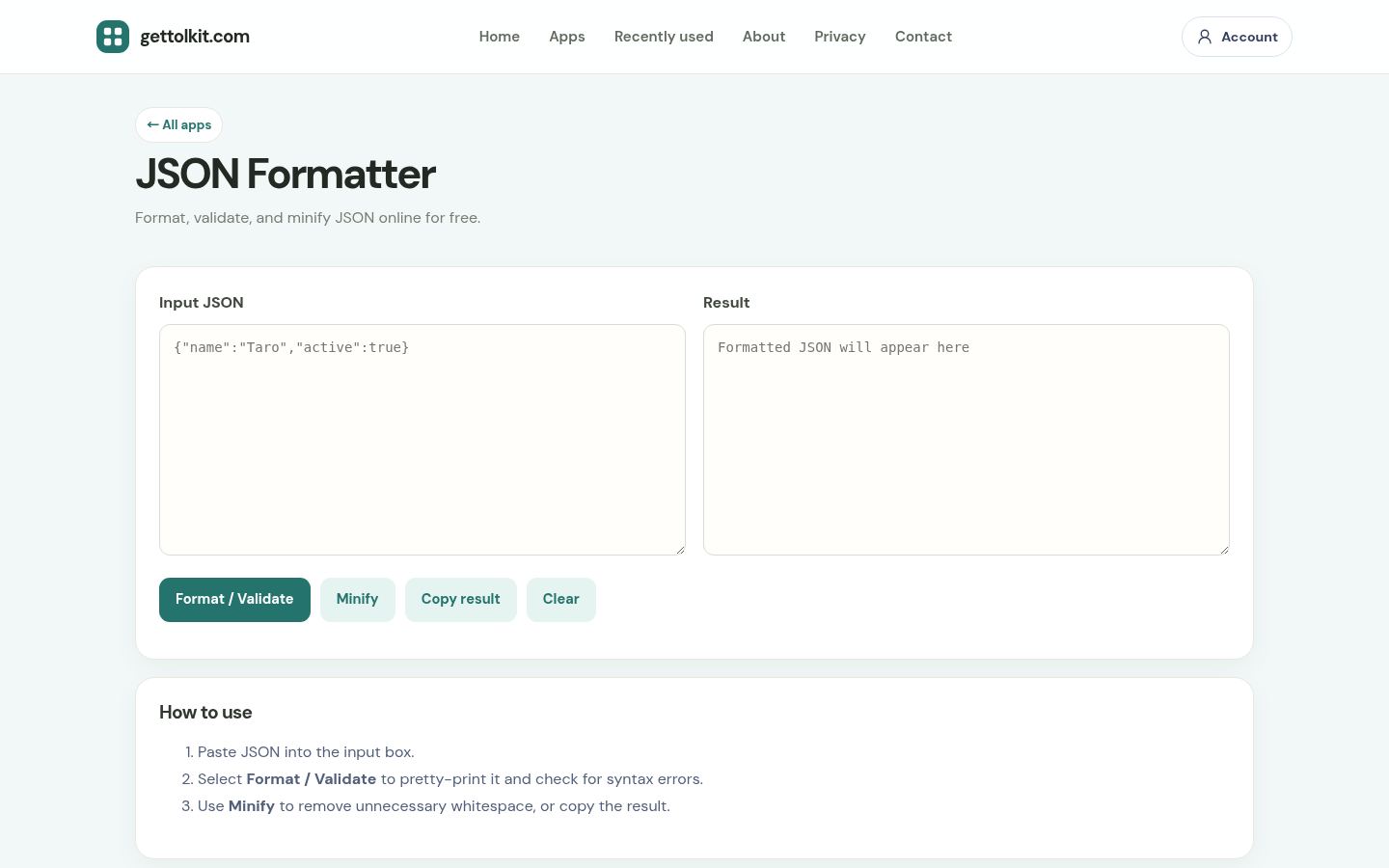
Developer & DataJSON Diff Checker
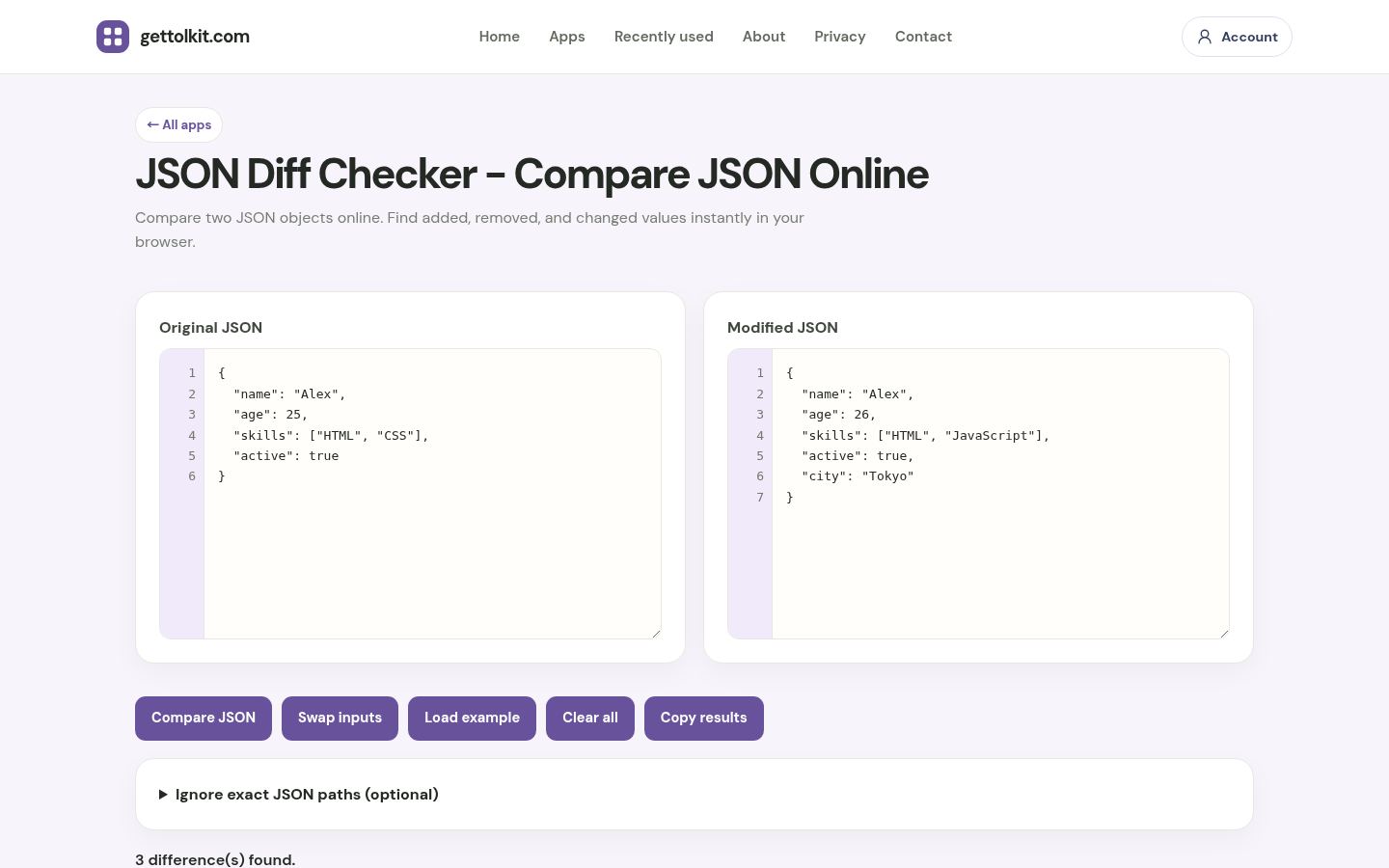
Compare two JSON values and spot additions, removals, and edits at a glance. The side-by-side view is useful when a file has changed but you need to understand exactly what is different.
Who it helps
Developers checking API responses or configuration changes, QA teams reviewing releases, and analysts comparing exported data.
How to use it
- Paste the earlier JSON into the first editor and the updated JSON into the second.
- Select Compare JSON to validate both inputs and show their differences.
- Review the highlighted paths and values, then copy the result or adjust the inputs.
Example: Compare a saved settings file with a new version to find which keys changed before deploying it.
Open JSON Diff Checker →
Developer & DataCSV to JSON Converter
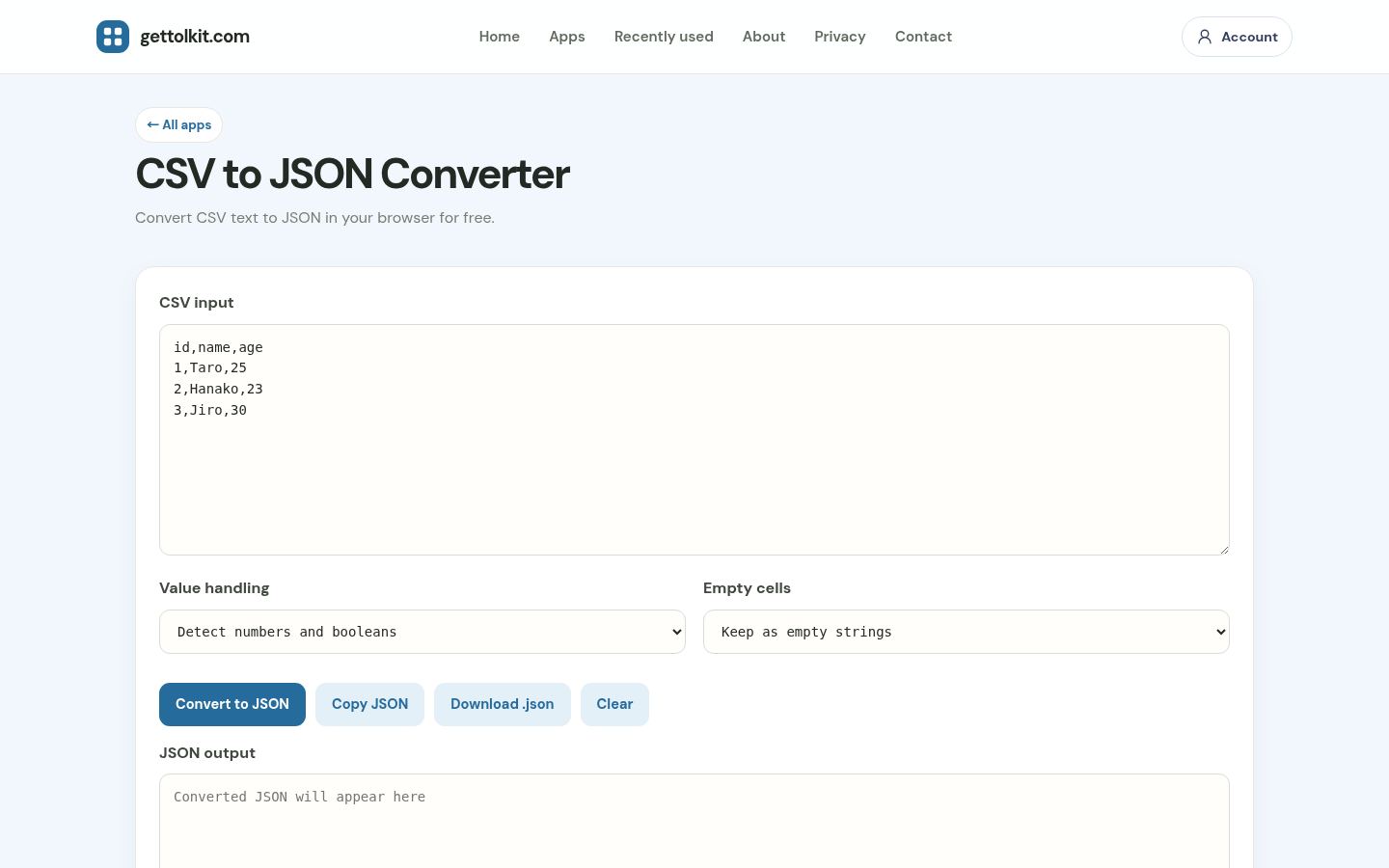
Convert comma-separated rows into structured JSON records. The first row can provide field names, making the output easier to use in scripts, APIs, and data workflows.
Who it helps
Analysts moving spreadsheet data into a web tool, developers preparing sample records, and teams that exchange tabular files.
How to use it
- Paste CSV text, including a header row such as
name,score. - Run the conversion and review the generated objects.
- Copy the JSON output and use it in your app, test, or documentation.
Example: name,score / Alex,92 becomes a record with a name field and a numeric score.
Open CSV to JSON Converter →
Writing & EverydayText Diff Checker
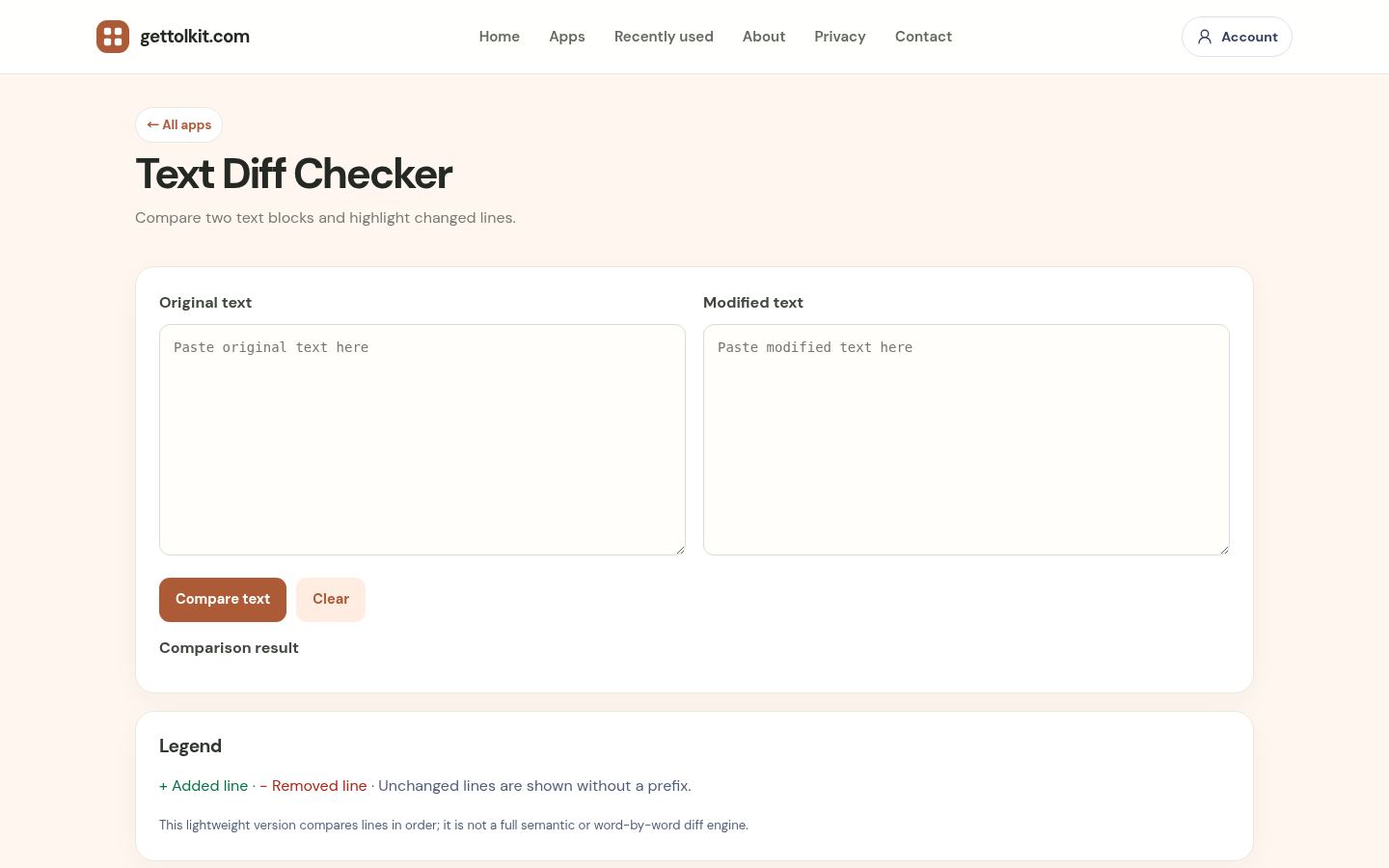
Compare two text passages and make edits easy to see. It is a quick way to review a rewrite, check a document revision, or verify that copied text has not lost important details.
Who it helps
Writers, editors, students, translators, and anyone reviewing changes to instructions or other plain text.
How to use it
- Paste the original passage in one field and the revised version in the other.
- Compare the texts to highlight added and removed lines.
- Review the changes line by line and revise either passage as needed.
Example: Compare two versions of an email or assignment draft to confirm a requested sentence was added.
Open Text Diff Checker →
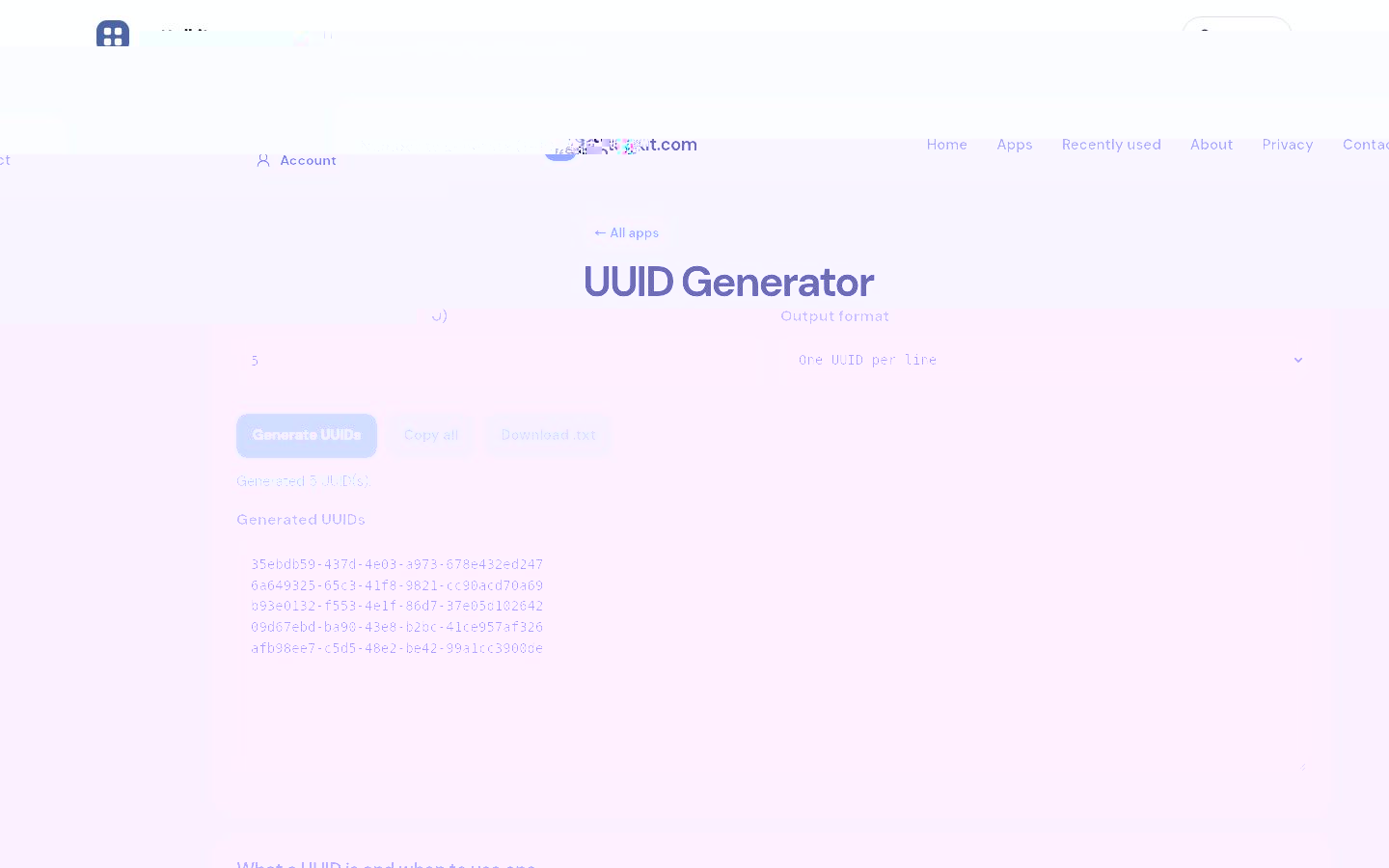
Developer & DataUUID Generator
Generate universally unique identifiers for records, test fixtures, and development work. Create one ID or a batch, then copy the values where you need them.
Who it helps
Developers, database users, testers, and people who need an ID that is unlikely to collide with another.
How to use it
- Choose how many UUIDs to generate and select the output format.
- Generate the IDs and review the result list.
- Copy the generated set with Copy all.
Example: Generate a fresh UUID for a test user record so repeated test runs do not reuse the same identifier.
Open UUID Generator →
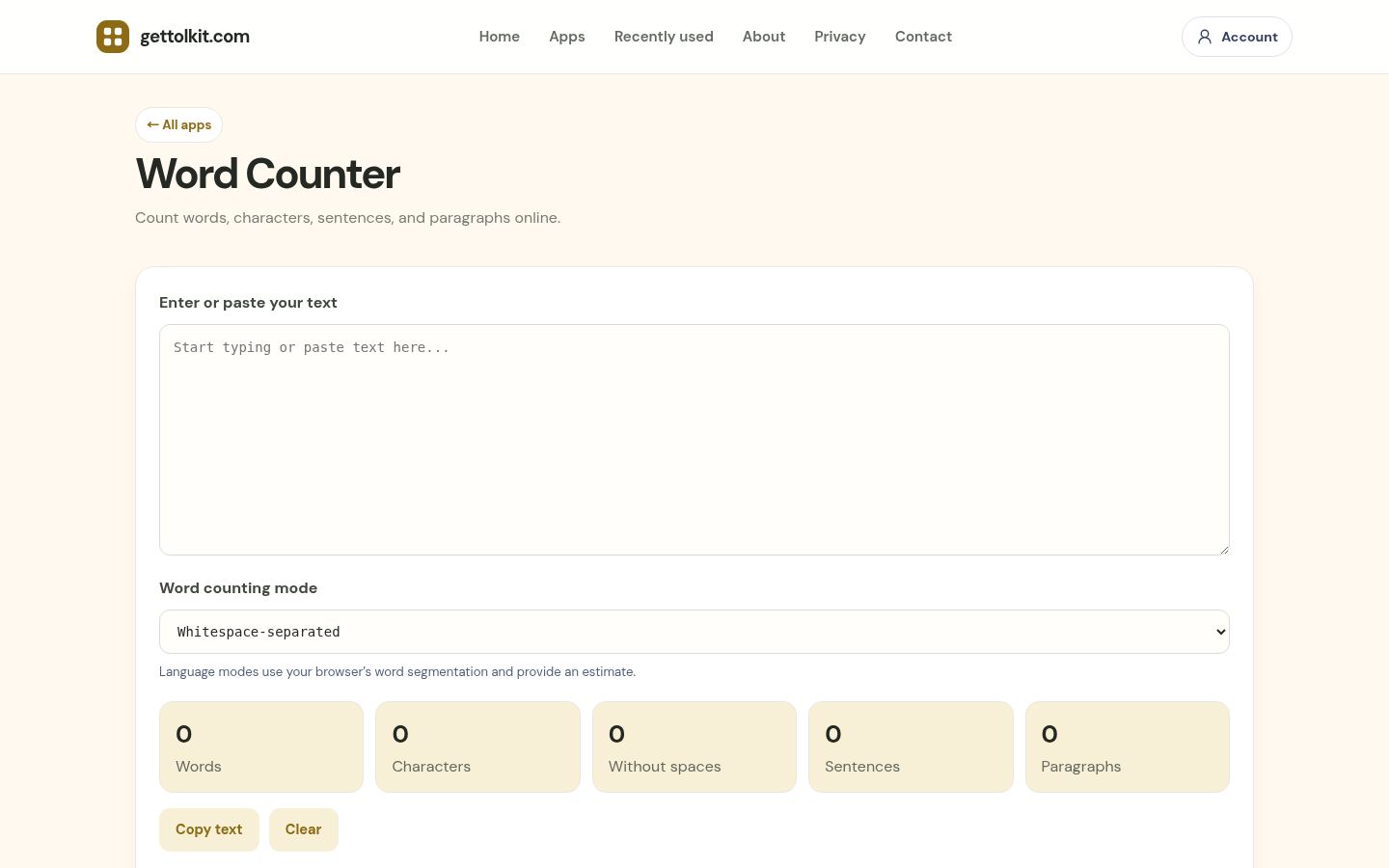
Writing & EverydayWord Counter
See word, character, sentence, and paragraph counts as you write or paste text. Use it to check length requirements without manually counting.
Who it helps
Students meeting assignment limits, writers preparing articles, and professionals drafting posts or messages with character caps.
How to use it
- Paste or type your text into the writing area.
- Read the live counts in the summary.
- Edit the text until it fits your target, then copy it into your final document.
Example: Check whether a short bio stays under a platform’s character limit before publishing it.
Open Word Counter →
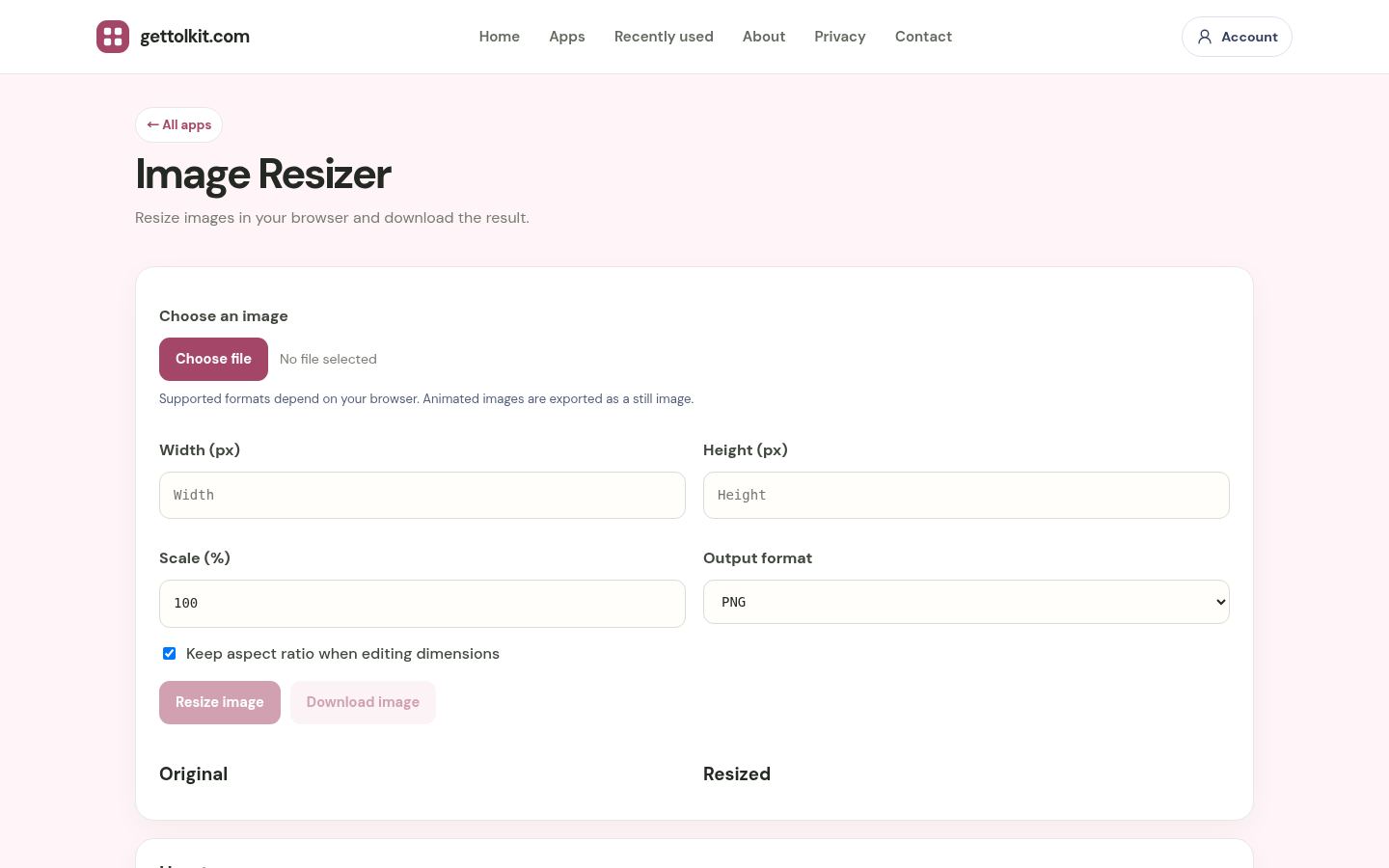
Images & DesignImage Resizer
Resize an image to exact pixel dimensions and export it in a convenient format. Keeping the aspect ratio helps prevent a photo or graphic from looking stretched.
Who it helps
People preparing profile pictures, students submitting images to a portal, and creators optimizing visuals for web pages.
How to use it
- Choose an image from your device.
- Enter the target width and height; keep Maintain aspect ratio enabled if you want to preserve its shape.
- Select an output format and download the resized image.
Example: Resize a large photo to a smaller upload size while preserving its original proportions.
Open Image Resizer →
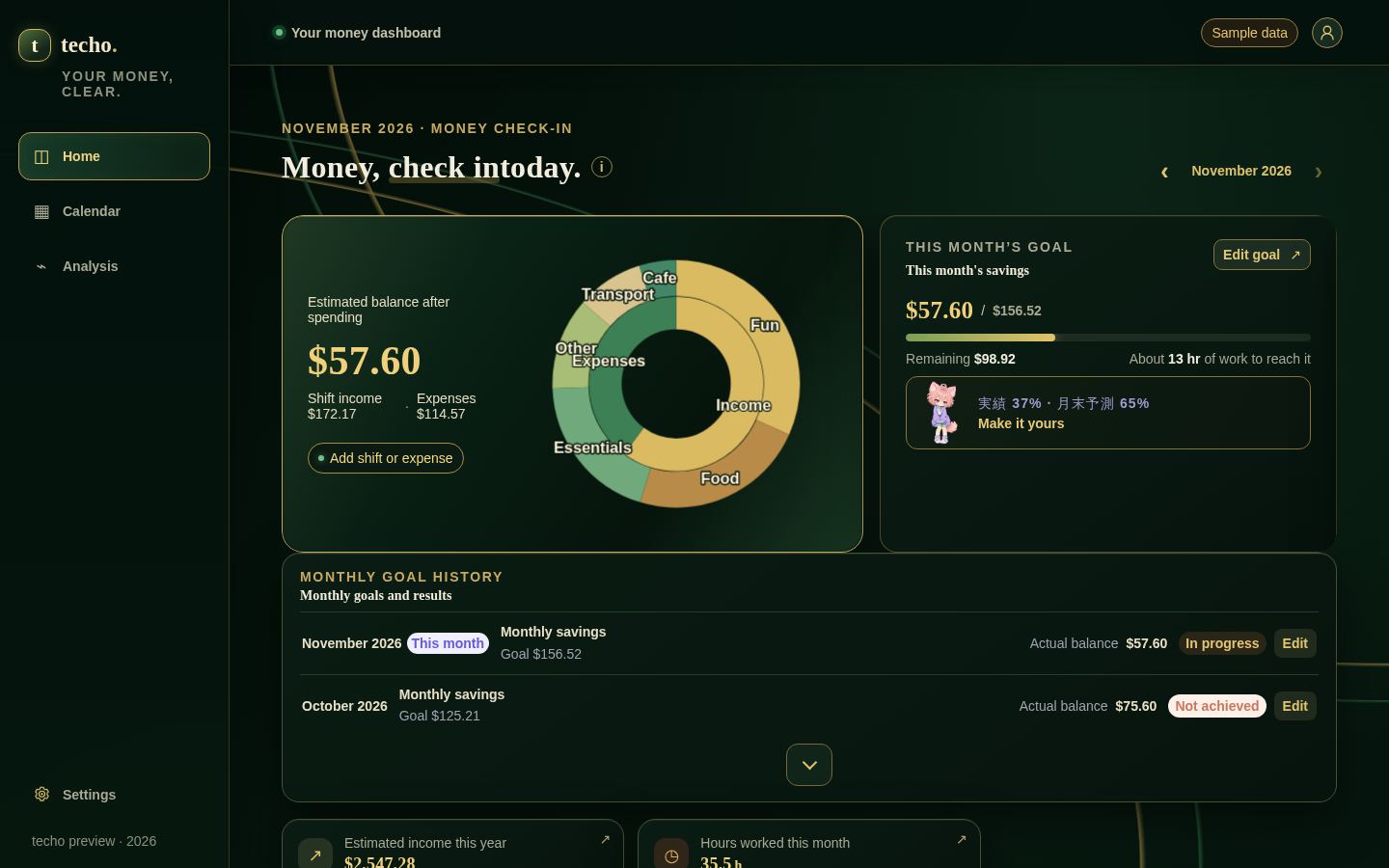
Money & PlanningStudent Budget Tracker
Bring work shifts, income, spending, and a monthly savings target into one view. The dashboard helps you see what has come in, what has gone out, and how your progress compares with your goal.
How estimates are calculated
Completed shift income is calculated as recorded hours multiplied by the hourly wage. Monthly savings progress uses completed shift income minus recorded expenses. The current month-end estimate projects the average daily balance recorded so far through the last day of the month. For the long-term savings pace, the app averages up to three previous months that contain records; if none are available, it uses the current month's daily average as a projection. These are planning estimates before tax and social insurance, not take-home pay.
Who it helps
Students and part-time workers who want to understand how shifts and everyday spending affect their savings.
How to use it
- Set a monthly savings goal and your default hourly wage in Settings.
- Add shifts and expenses in Calendar as they happen. For a shift, enter the hours worked and wage; for an expense, record the amount and category.
- Review the dashboard and goal history to see whether you are on track; sign in if you want your records synced across devices.
Example: Add this week’s shifts and café spending, then check how much of the monthly goal remains.
Open Student Budget Tracker →
Maps & RoutesWalking Route Planner
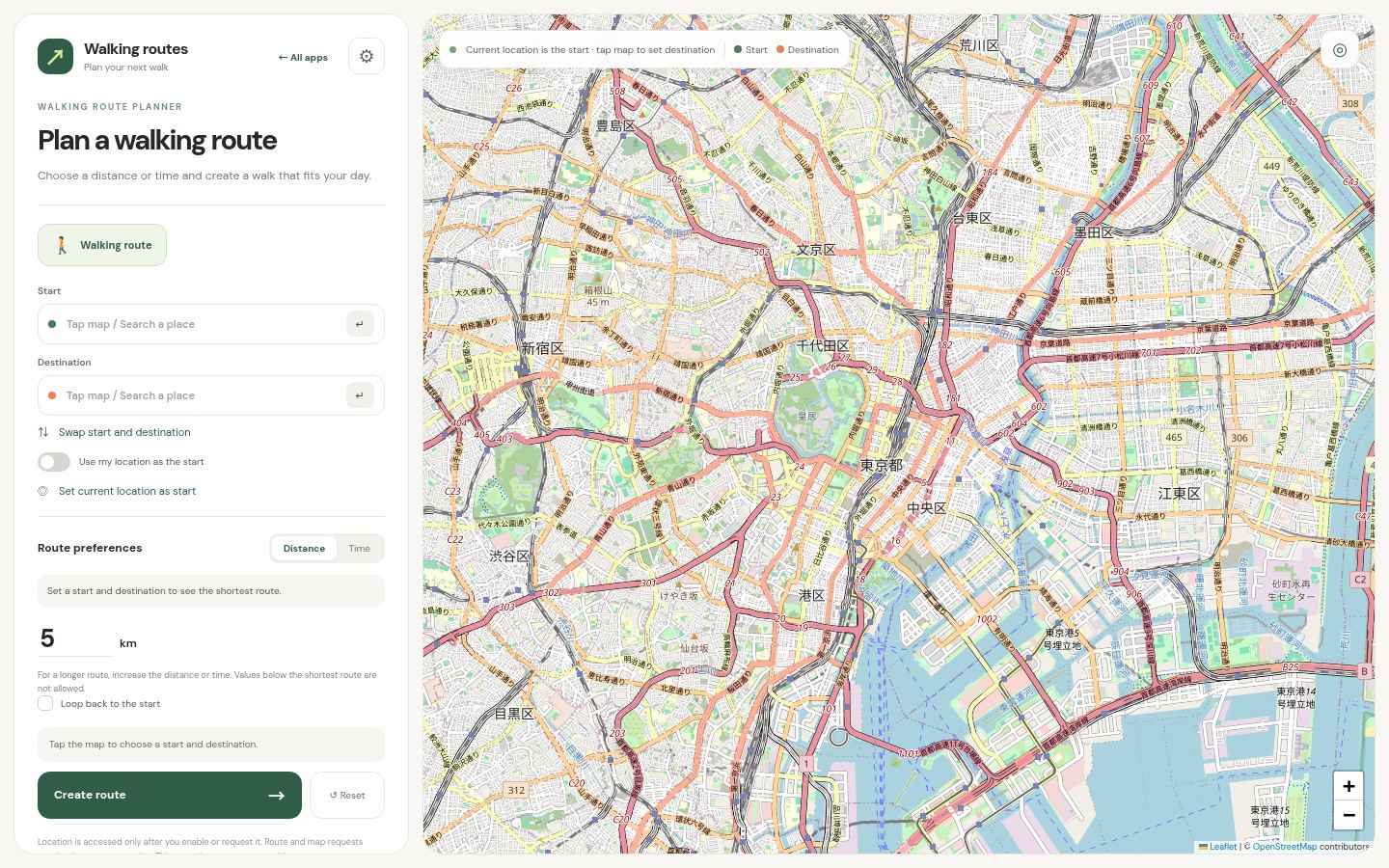
Create a walk based on the distance or time you have available. The map shows the route, while distance and duration estimates help you decide if it fits your day.
Who it helps
Walkers looking for a short break route, people exploring a new neighborhood, and anyone who wants a planned stroll without choosing every turn manually.
How to use it
- Enter a starting location and choose a distance or duration preference.
- Set any route preferences, then create the route.
- Review the path and estimates on the map; allow location access when you want GPS guidance while walking.
Example: Choose a short walk near your current area during a lunch break, then check the estimated time before starting.
Open Walking Route Planner →